Wednesday, January 23, 2013

FTDI shield/jig for stand alone ATmega

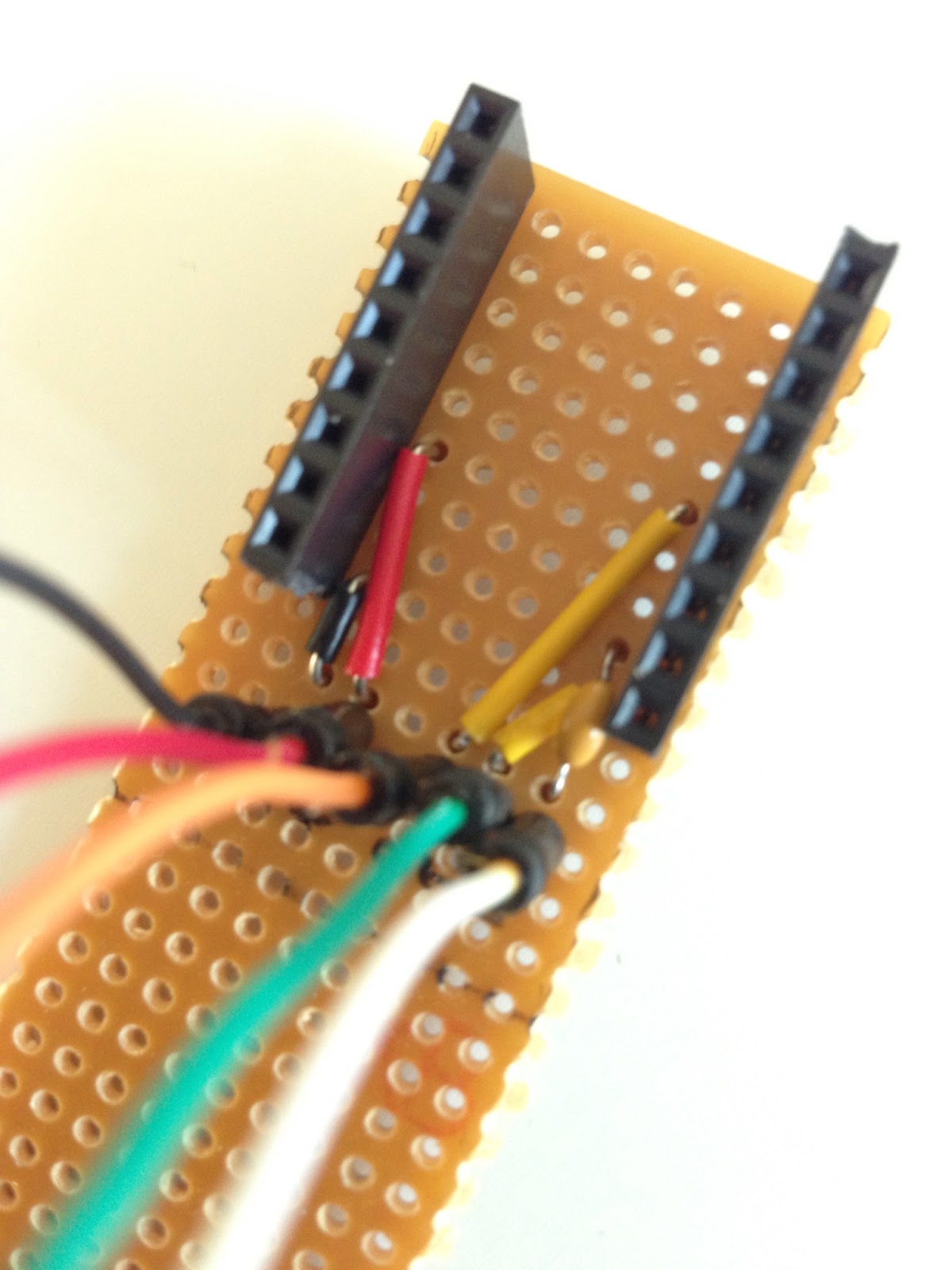
Made a Quick n' dirty jig to fit my Sparkfun FT232RL break out board. I found it a tad bit annoying to always having to unplug and flip board to check and double check the connectors when uploading new code to stand alone ATmega projects.

Basically it brings out the VCC, GND, RXD, TXD and DTR (via a 0.1 uF cap) pins to jumper cables. 
I'll probably add some labels later.


One end of the jumper cables permanently soldered to the jig and the other end resting in the perfboard holes.

Under the board is the pretty simple circuit with the oh so important 0.1 uF capacitor that goes between the ATmega reset pin and the FT232RL DTR pin. 


Ready and hooked up to a ATmega328P on a breadboard.

The Sparkfun FT232RL break out board.

Monday, January 21, 2013

Atari Punk Console

So I built an Atari Punk Console. It was... fun! 


Finished Atari Punk Console in a Coleman's Mustard Powder can.


Declaration of contents on the back.


Obligatory video.

I based my circuit on these two schematics. Since I only had 555 chips and not a 556 I started with the first schematic but used the 1M Ohm pots from the last one and everything after the 10 uF capacitor. I guess I just liked the sound of the 1 M Ohm pots better. I also added a powerswitch and a LED to indicate ON/OFF.


Circuit schematic found in josh1324 Instructable here.


Circuit schematic found in Collin Cunningham's Make tutorial here.


Breadboarded Circuit. This one uses 10K pots as these were the only ones I had lying around.


Halfway through mounting the circuit on a perfboard ...


... a low quality perfboard. I had alot of issues with pads coming off, well it could be my soldering technique aswell.


A green LED indicating power is on and a anarchy symbol indicating punk is on. Pretty basic ;)

Saturday, July 7, 2012

A dab of hot glue [UPDATED]


In a rather unsuccessful attempt to interest my two and a half year old in the world of making stuff, I showed her an episode of "Sylvia's super awesome maker show". Instead I learned a neat trick that will solve an issue I haven't yet experienced... well at least it seems like a very good solution to a problem I might have in the future.

Anyway here it is: If you solder for instance, battery wires directly onto a perfboard of some sort. Fixate the connection with a dab of hot glue to ensure that the soldered joint doesn't break due to cable movement.

I added some hot glue to my Arduino Standalone Atmega
but I probably should have done this prior to soldering
some of the nearby components.


It may not look very pretty but it does keep the stress-point
of the cable away from the solder joint.


By the way apparently it's Sylvia's birthday today so congratulations and thank you for the tip!

[UPDATE] 
With my hot glue gun in one hand and a fistful of desire to fixate cables in the other I managed to destroy a potentiometer. I failed to notice a small hole in the potentiometer near the solder tabs and got glue inside the potentiometer, increasing the inertia quite a bit.

Heed my warning and be cautious when glueing!

Arduino: Sending integers over RF with VirtualWire

When I tried to send the output from a sensor over RF with VirtualWire I quickly learned that it wasn't as simple as one two three.

But eventually I got it working with a little help from the good folks at the Arduino forum

VirtualWire is a library that makes it really easy to transmit using RF modules. I've successfully used two different kinds of 434 Mhz modules with it but it has support for other types aswell. 

The code and comments below are pretty much self explanatory:

Transmitter (download source code)
/* 

Sensor Transmitter
By Markus Ulfberg 2012-07-06

Takes a sensor reading 0-1023
converts it to a char array and sends 
to RF receiver unit via VirtualWire  

*/

#include <VirtualWire.h>

// LED's
const int ledPin = 13;

// Sensors 
const int Sensor1Pin = A2;
// const int Sensor2Pin = 3; 

int Sensor1Data;
//int Sensor2Data;
char Sensor1CharMsg[4]; 

void setup() {

 // PinModes 
 // LED 
 pinMode(ledPin,OUTPUT);
 // Sensor(s)
 pinMode(Sensor1Pin,INPUT);
 
 // for debugging
 Serial.begin(9600); 
 
 // VirtualWire setup
 vw_setup(2000);     // Bits per sec


}

void loop() {
  
  // Read and store Sensor 1 data
  Sensor1Data = analogRead(Sensor1Pin);
  
  // Convert integer data to Char array directly 
  itoa(Sensor1Data,Sensor1CharMsg,10);
  
  // DEBUG
  Serial.print("Sensor1 Integer: ");
  Serial.print(Sensor1Data);
  Serial.print(" Sensor1 CharMsg: ");
  Serial.print(Sensor1CharMsg);
  Serial.println(" ");
  delay(1000);

  // END DEBUG
 
 digitalWrite(13, true); // Turn on a light to show transmitting
 vw_send((uint8_t *)Sensor1CharMsg, strlen(Sensor1CharMsg));
 vw_wait_tx(); // Wait until the whole message is gone
 digitalWrite(13, false); // Turn off a light after transmission
 delay(200); 
 
} // END void loop...

Receiver (download source code)
/* 

Sensor Receiver 
By Markus Ulfberg 2012-07-06

Gets a sensor reading 0-1023 in a char array
from RF Transmitter unit via VirtualWire 
converts char array back to integer

*/

#include <VirtualWire.h>

// LED's
int ledPin = 13;

// Sensors 
int Sensor1Data;

// RF Transmission container
char Sensor1CharMsg[4]; 

void setup() {
  Serial.begin(9600);
  
  // sets the digital pin as output
  pinMode(ledPin, OUTPUT);      
    
    // VirtualWire 
    // Initialise the IO and ISR
    // Required for DR3100
    vw_set_ptt_inverted(true); 
    // Bits per sec
    vw_setup(2000);     
    
    // Start the receiver PLL running
    vw_rx_start();       

} // END void setup

void loop(){
    uint8_t buf[VW_MAX_MESSAGE_LEN];
    uint8_t buflen = VW_MAX_MESSAGE_LEN;
    
    // Non-blocking
    if (vw_get_message(buf, &buflen)) 
    {
    int i;
        // Turn on a light to show received good message 
        digitalWrite(13, true); 
    
        // Message with a good checksum received, dump it. 
        for (i = 0; i < buflen; i++)
    {            
          // Fill Sensor1CharMsg Char array with corresponding 
          // chars from buffer.   
          Sensor1CharMsg[i] = char(buf[i]);
    }
        
        // Null terminate the char array
        // This needs to be done otherwise problems will occur
        // when the incoming messages has less digits than the
        // one before. 
        Sensor1CharMsg[buflen] = '\0';
        
        // Convert Sensor1CharMsg Char array to integer
        Sensor1Data = atoi(Sensor1CharMsg);
        
        
        // DEBUG 
        Serial.print("Sensor 1: ");
        Serial.println(Sensor1Data);
        
        // END DEBUG
                
        // Turn off light to and await next message 
        digitalWrite(13, false);
    }
}


Source code formatted for blogger by: formatmysourcecode.blogspot.com

Saturday, June 30, 2012

Arduino standalone ATmega

Soldered up my first standalone ATmega Arduino yesterday.


 It's only running the blink sketch right now but I will soon add a RF transmitter and a sensor...
... and solder up yet another add a RF receiver and some sort of notification.


Same circuit breadboarded 
Note to self: Use different color LEDs next time.

Adafruit has a handy sticker that shows the pinouts of the ATmega. 


It's based on the tutorials here:
http://itp.nyu.edu/physcomp/Tutorials/ArduinoBreadboard
http://blog.makezine.com/2009/01/15/cheapest-standalone-arduino/

Wednesday, December 14, 2011

Arduino Mood Light Controller v3

I finally go some time and some inspiration to update the source code of my Arduino Mood Light Controller. I'll just try to keep it short ...

Code cleanup:
All the light modes have been moved to separate functions.
Replaced a couple of "If, then..." with "Switch, Case", makes the code somewhat easier to read.

New features:
Added two light modes - cycleColor and lightMyFire.
Speed of pulsateColor and cycleColor now controlled via potentiometer.


Download the source code here.
Source code formatted for blogger by: formatmysourcecode.blogspot.com

/* 
  RGB LED controller
  4 modes: off, color select, color pulse and random cycle/pulse
  By Markus Ulfberg 2009-05-19
  
  Updated to Version 2 - 2010-01-13 (Not publicly released)
  Updated to Version 3 - 2011-12-14

  Thanks to: Ladyada, Tom Igoe and 
  everyone at the Arduino forum for excellent 
  tutorials and everyday help. 

  TODO: 
  1. Use millis for debounce instead of delay. 

*/

// set the ledPins
int ledRed = 10;
int ledGreen = 9;
int ledBlue = 11;

// color selector pin
int potPin = 1;
 
// lightMode selector
int switchPin = 2;

// light mode variable
// initial value 0 = off
int lightMode = 0;

// LED Power variables
byte redPwr = 0;
byte greenPwr = 0;
byte bluePwr = 0;

// Variables for lightMode 2
// variables for keeping pulse color
byte redPulse;
byte greenPulse;
byte bluePulse;
int pulseSpeed; 

// Set pulse to down initially
byte pulse = 0;

// floating variables needed to be able to pulse a fixed color 
float redFloat;
float greenFloat;
float blueFloat;

// the amount R,G & B should step up/down to display an fixed color
float redKoff;
float greenKoff;
float blueKoff;

// Variables for lightMode 3
// set the initial random colors
byte redNew = random(255);
byte greenNew = random(255);
byte blueNew = random(255);

// Variables for cycleColor
int truColor = 0;

// misc interface variables
// potVal store the value of the potentiometer for various needs 
int potVal;
// value from the button (debounce)
int switchVal;
int switchVal2;
// buttonState registers if the button has changed
int buttonState;

void setup()
{
  pinMode(ledRed, OUTPUT);
  pinMode(ledGreen, OUTPUT);
  pinMode(ledBlue, OUTPUT);
  
  pinMode(potPin, INPUT);
  
  pinMode(switchPin, INPUT);
  buttonState = digitalRead(switchPin); 
  
  // serial for debugging purposes only
  Serial.begin(9600);
}

void loop()
{
  switchVal = digitalRead(switchPin);      // read input value and store it in val
  delay(10);                         // 10 milliseconds is a good amount of time
    
  switchVal2 = digitalRead(switchPin);     // read the input again to check for bounces
  if (switchVal == switchVal2) {                 // make sure we got 2 consistant readings!
    if (switchVal != buttonState) {          // the button state has changed!
      if (switchVal == LOW) {                // check if the button is pressed
        switch (lightMode) {          // light is off
          case 0:
            lightMode = 1;           // light is on and responds to pot
            break;  
          case 1:
            lightMode = 2;           // light pulsates in the latest color from pot
            break;  
          case 2:     
            lightMode = 3;           // light cycles thru colors
            break;
          case 3:
            lightMode = 4;           // light changes randomly
            break;
          case 4:
            lightMode = 5;           // simulated fire
            break;  
          case 5:     
            lightMode = 0;             // light is off        
            break;  
        } // END switch (lightMode)    
      } // END if (switchVal == LOW)
    } // END if (switchVal != buttonState) 
      
    buttonState = switchVal;                 // save the new state in our variable
  } // END if (switchVal == switchVal2)

  /*
  // Debug
  Serial.print("lightMode: ");
  Serial.println(lightMode);
  */
  
  switch (lightMode) {
    case 0:
      lightsOff();
      break;
    case 1:
      colorControl();
      break;
    case 2:
      pulsateColor();
      break;
    case 3: 
      cycleColor();
      break;
    case 4:
      randomColor();
      break;
    case 5:
      lightMyFire();
      break;  
  }

} // END loop()


// lightMode 0
void lightsOff() {
  redPwr = 0;
  greenPwr = 0;
  bluePwr = 0;
  colorDisplay();
}

// lightMode 1 
void colorControl() {

   // read the potentiometer position
   potVal = analogRead(potPin); 
 
  // RED > ORANGE > YELLOW
   if (potVal > 0 && potVal < 170) {
     redPwr = 255;
     bluePwr = 0;
     greenPwr = map(potVal, 0, 170, 0, 255);
   }
 
   // YELLOW > LIME?? > GREEN 
   if (potVal > 170 && potVal < 341) {
     greenPwr = 255;
     bluePwr = 0;
     redPwr = map(potVal, 341, 170, 0, 255);
   }

    // GREEN > TURQOUISE
    if (potVal > 341 && potVal < 511) {
      greenPwr = 255;
      redPwr = 0;
      bluePwr = map(potVal, 341, 511, 0, 255);
    }
 
   // TURQOUISE > BLUE  
   if (potVal > 511 && potVal < 682) {
     bluePwr = 255;
     redPwr = 0;
     greenPwr = map(potVal, 682, 511, 0, 255);
   }
 
   // BLUE > PURPLE 
   if (potVal > 682 && potVal < 852) {
     bluePwr = 255;
     greenPwr = 0;
     redPwr = map(potVal, 682, 852, 0, 255);
   }
 
   // PURPLE > RED
   if (potVal > 852 && potVal < 1023) {
     redPwr = 255;
     greenPwr = 0;
     bluePwr = map(potVal, 1023, 852, 0, 255);
   } 
   
   redFloat = float(redPwr);
   greenFloat = float(greenPwr);
   blueFloat = float(bluePwr);
   
   redKoff = redFloat / 255;
   greenKoff = greenFloat / 255;
   blueKoff = blueFloat / 255;
   
   redPulse = redPwr;
   greenPulse = greenPwr;
   bluePulse = bluePwr; 
   
  /*
  // Debug 
  Serial.print("redFLoat: ");
  Serial.print(redFloat, DEC);
  Serial.print(" redPwr: ");
  Serial.print(redPwr, DEC);
  Serial.print(" greenFloat: ");
  Serial.print(greenFloat, DEC);
  Serial.print(" greenPwr: ");
  Serial.print(greenPwr, DEC);
  Serial.print(" blueFloat: ");
  Serial.print(blueFloat, DEC);
  Serial.print(" bluePwr: ");
  Serial.println(bluePwr, DEC);
  // End debug
  */
  // Display colors 
  colorDisplay();
}        

// lightMode 2
void pulsateColor() {
  
    // get colors from colorControl
    redPwr = int(redFloat);
    greenPwr = int(greenFloat);
    bluePwr = int(blueFloat);
      
    // Read speed from potentiometer 
    pulseSpeed = analogRead(potPin); 
    pulseSpeed = map(pulseSpeed, 0, 1023, 0, 255);
  
    //display the colors
    colorDisplay();
    
    // set speed of change
    delay(pulseSpeed);
    
    // pulse down
    if (pulse == 0) {
      if (redFloat > 10) {
        redFloat = redFloat - redKoff;
      } 
      if (greenFloat > 10) {
        greenFloat = greenFloat - greenKoff;
      } 
      if (blueFloat > 10) {
        blueFloat = blueFloat - blueKoff;
      } 

    // If all xFloat match 10 get pulse up
    if (byte(redFloat) <= 10) {
     if (byte(greenFloat) <= 10) {
      if (byte(blueFloat) <= 10) {
       pulse = 1;
      }
     }
    }
  }
  // Pulse up
  if (pulse == 1) {
    if (redFloat < redPulse) {
      redFloat = redFloat + redKoff;
    } 
    if (greenFloat < greenPulse) {
      greenFloat = greenFloat + greenKoff;
    } 
    if (blueFloat < bluePulse) {
      blueFloat = blueFloat + blueKoff;
    }
   // If all Pwr match Pulse get pulse down
  
    if (byte(redFloat) == redPulse) {
     if (byte(greenFloat) == greenPulse) {
      if (byte(blueFloat) == bluePulse) {
       pulse = 0;
      }
     }
    }
  }
  
  /*
  // Debug 
  Serial.print("redFloat: ");
  Serial.print(redFloat, DEC);
  Serial.print(" redPulse: ");
  Serial.print(redPulse, DEC);
  Serial.print(" greenFloat: ");
  Serial.print(greenFloat, DEC);
  Serial.print(" greenPulse: ");
  Serial.print(greenPulse, DEC);
  Serial.print(" blueFloat: ");
  Serial.print(blueFloat, DEC);
  Serial.print(" bluePulse: ");
  Serial.print(bluePulse, DEC);
  Serial.print(" pulse: ");
  Serial.println(pulse, DEC);
  // End debug
  */
  
} // pulsateColor END 

// lightMode 3
void cycleColor() {    // Cycles through colors

  switch(truColor) {
  // RED > ORANGE > YELLOW   
   case 0:
     redPwr = 255;
     bluePwr = 0;
     greenPwr++;
     if (greenPwr > 254) {
       truColor = 1;
     }
     break;
   
   // YELLOW > LIME?? > GREEN 
   case 1:
     greenPwr = 255;
     bluePwr = 0;
     redPwr--;
     if (redPwr < 1) {
       truColor = 2;
     }
     break;

   // GREEN > TURQOUISE
   case 2:
     greenPwr = 255;
     bluePwr++;
     redPwr = 0;
     if (bluePwr > 254) {
       truColor = 3;
     }   
    break;
    
   // TURQOUISE > BLUE  
   case 3:
     greenPwr--;
     bluePwr = 255;
     redPwr = 0;
     if (greenPwr < 1) {
       truColor = 4;
     }
     break;
     
   // BLUE > PURPLE 
   case 4:
     greenPwr = 0;
     bluePwr = 255;
     redPwr++;
     if (redPwr > 254) {
       truColor = 5;
     }
     break;
     
   // PURPLE > RED
   case 5:
     greenPwr = 0;
     bluePwr--;
     redPwr = 255;
     if (bluePwr < 1) {
       truColor = 0;
     }   
     break;
 }
  // START SPEED 
  pulseSpeed = analogRead(potPin); 
  pulseSpeed = map(pulseSpeed, 0, 1023, 0, 255);
  
  //display the colors
  colorDisplay();
  // set speed of change
  delay(pulseSpeed);
  // END SPEED
  
}  // END cycleColor 


// lightMode 4 
void randomColor() {     // randomize colorNew and step colorPwr to it
                          
  if (redPwr > redNew) {
    redPwr--;
  } 
  if (redPwr < redNew) {
    redPwr++;
  }
  if (greenPwr > greenNew) {
    greenPwr--;
  } 
  if (greenPwr < greenNew) {
    greenPwr++;
  }
  if (bluePwr > blueNew) {
    bluePwr--;
  } 
  if (bluePwr < blueNew) {
    bluePwr++;
  }

// If all Pwr match New get new colors
  
  if (redPwr == redNew) {
   if (greenPwr == greenNew) {
    if (bluePwr == blueNew) {
     redNew = random(254);
     greenNew = random(254);
     blueNew = random(254);
    }
   }
  }
  
  // display the colors
  colorDisplay();
  // Set speed of change
  delay(20);

} // END randomColor 

// lightMode 5
void lightMyFire() {
  
  // Flicker will determine how often a fast flare will occur
  int flicker;

  // set flicker randomness
  flicker = random(800); 

  // Set random colors, 
  // constrain green to red and blue to green
  // in order to stay within a red, blue, white spectrum
  redPwr = random(220, 240);
  greenPwr = random(180, 200);
  // when flicker occur, the colors shine brighter
  // adding blue creates a white shine 
  if (flicker > 750) {
    redPwr = 254;
    greenPwr = random(200, 230); 
    bluePwr = random(0, 50);    
  } else {
    bluePwr = 0;
  }
  
  // display Colors
  colorDisplay();
  
  // Set speed of fire
  delay(20);  

} // END lightMyFire

// Displays the colors when called from other functions
void colorDisplay() {
  analogWrite(ledRed, redPwr);
  analogWrite(ledGreen, greenPwr);
  analogWrite(ledBlue, bluePwr);
}

Thursday, October 27, 2011

How I fixed a rattling laptop fan

So my laptop fan started rattling recently. First I thought it might be my hard drive that was about to give up, so I was kind of glad it was "just" the fan. Until the noise of the fan started to drive me slightly insane. My first attempt of silencing the fan was a failure. I opened up my laptop and cleaned out all the dust in the fan and the vents. I also checked if there any loose pieces of something in the fan, but didn't find anything. After putting the laptop back together again it didn't take long for the fan to start making noise again.

So yesterday evening I opened up my laptop again, about a month after my initial try. I took it one step further this time, I removed the fan completely and disassembled it up til the point where I had the fan blades removed from the housing. After cleaning everything as good as possible I  put a drop of oil (for sewing machines) on the spindle where the fan blades sit. When I had put everything back togheter I could verify that my laptop now indeed was quiet as a mouse. And yes before you ask, the fan i still working.

Unfortunately I didn't take any pictures of this but hopefully it's quite easy to understand anyway. If you don't please just ask and I will try to give you an answer.